


My cousin panicked last week when Activity Monitor showed her MacBook Air sitting at 92 percent RAM usage, convinced something was badly wrong. I checked her Memory Pressure graph and it was solid green. Her Mac was actually running fine.
That gap between what people think they're looking at and what actually matters is exactly why I went and researched how to clear RAM on Mac properly, rather than just repeating the generic "restart your computer" advice everyone already knows. Here's what genuinely helps, and the one number you should stop obsessing over.
How to Clear RAM on Mac: The Fastest Fix First
The quickest, most reliable way to free memory is simply restarting your Mac. A restart wipes RAM completely, closes every running app, and reloads macOS fresh, giving you a genuinely clean memory slate rather than a partial fix.
If you'd rather not restart, opening Terminal, typing sudo purge, and pressing Return forces macOS to flush inactive memory within seconds after you enter your administrator password. Your Mac may briefly freeze or beachball for 5 to 10 seconds while this happens, which is normal and expected rather than a sign something's gone wrong.
 The Memory Pressure Number That Actually Matters
Here's the thing I think almost every basic guide gets backwards. A Mac showing 90 percent RAM usage with a green Memory Pressure graph is performing better than a Mac showing 60 percent RAM usage with a red Memory Pressure graph. Total RAM percentage alone is genuinely misleading.
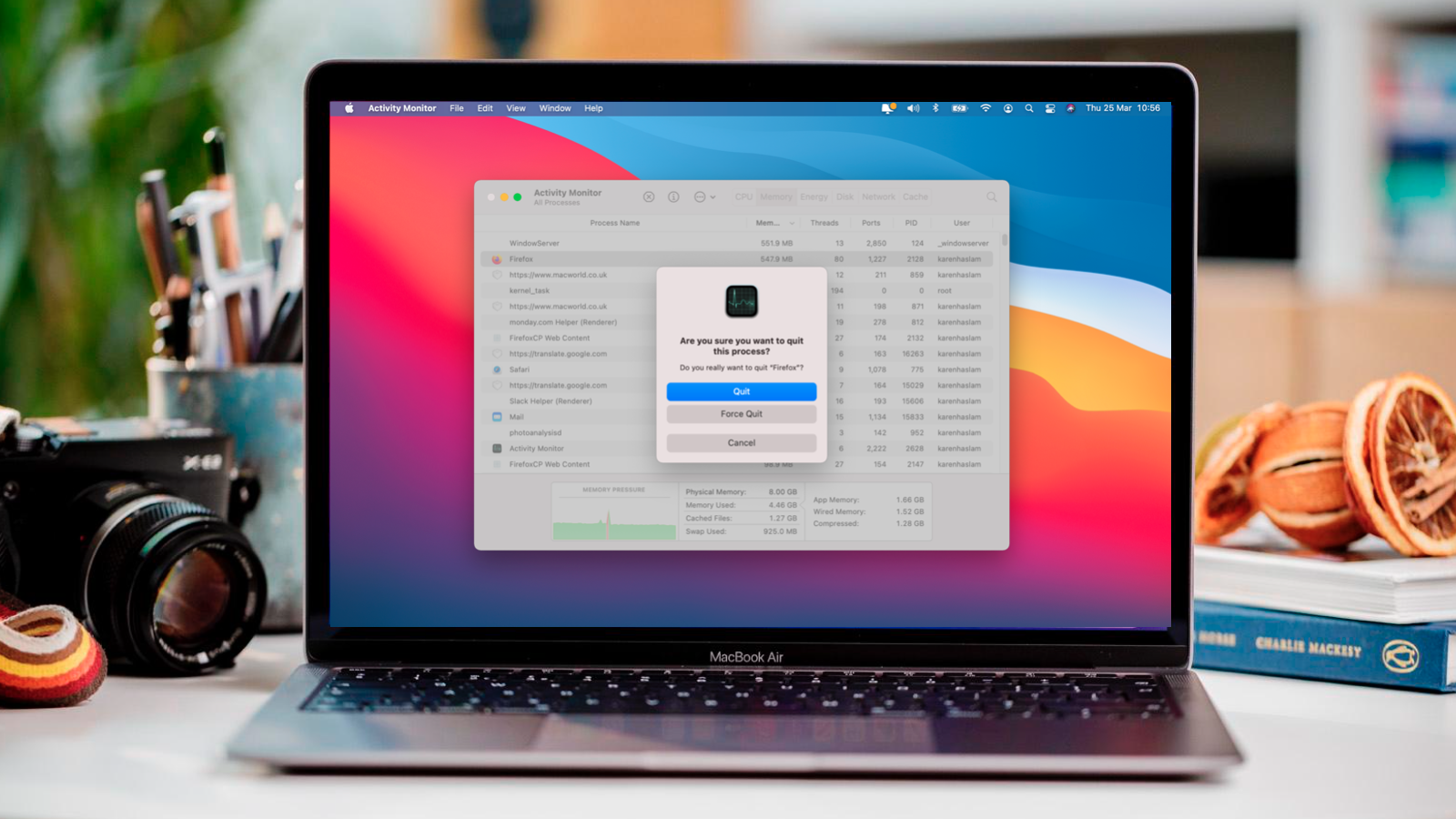
macOS is designed to use as much available memory as possible, since unused RAM is wasted potential. What actually signals a real problem is the Memory Pressure indicator specifically, found at the bottom of Activity Monitor's Memory tab. Green means everything's fine regardless of the percentage number above it. Yellow means macOS has started compressing and swapping data to your SSD to make room, which introduces real slowdown. Red means you're genuinely out of usable memory and about to feel it in every app you touch.
Check that colored graph before you panic over a raw percentage number that, on its own, tells you almost nothing useful.
How to Check What's Actually Using Your Memory
Open Finder, go to Applications, then Utilities, and open Activity Monitor. Click the Memory tab at the top, and you'll see the full breakdown, including App Memory, Wired Memory used by the system itself, Compressed memory that's been shrunk to free up more room, Cached Files, and Swap Used, which shows how much overflow has spilled onto your storage drive.
Sort the list by the Memory column specifically to see exactly which apps are consuming the most, rather than guessing based on how many windows you have open.
Closing Down the Heavy Consumers
Once you've identified the culprit, select it in Activity Monitor and click the X button in the toolbar. Choose Quit rather than Force Quit unless the app is genuinely frozen and unresponsive, since Force Quit skips the app's normal save and cleanup process.
Browsers are the single largest RAM consumer on most Macs, and each open tab in Chrome or Firefox consumes memory independently, sometimes eating anywhere from 250MB to a full gigabyte per tab depending on the page. If you're routinely running 20-plus tabs, that adds up to a genuinely significant chunk of your total memory before you've opened a single other app. Enabling Chrome's Memory Saver mode, through the three-dot menu, then Settings, then Performance, meaningfully helps if you're a habitual tab hoarder like I am.
What Apple Silicon Actually Changed About RAM
If you're on an M1, M2, M3, or newer Mac, the conversation around RAM genuinely works differently than it did on older Intel machines, and I think this is worth understanding rather than just accepting on faith.
Apple Silicon introduced unified memory architecture, where the CPU, GPU, and Neural Engine all share a single pool of fast memory instead of having separate memory banks the way traditional computers do. There's no copying data back and forth between separate CPU and GPU memory pools, which is a big part of why 8GB on an Apple Silicon Mac can feel noticeably more capable than 8GB felt on an older Intel model.
The Login Items Habit Worth Building
Go to System Settings, then General, then Login Items and Extensions, and turn off anything you don't genuinely need launching automatically every time you start your Mac. Apps quietly loading at startup are a common, invisible drain on memory that most people never think to check, and disabling them means your Mac boots up with meaningfully less memory already committed before you've opened anything yourself.
The macOS Tahoe-Specific Tip Nobody's Mentioning Yet
Here's something genuinely current worth knowing if you're running macOS 26 Tahoe specifically. The new Liquid Glass interface design is more demanding on your GPU and unified memory than previous macOS versions, particularly noticeable on older Macs or base-model MacBook Airs with less headroom to spare.
If your Mac feels sluggish after updating to Tahoe specifically, go to System Settings, then Accessibility, then Display, and toggle on Reduce Transparency. That single setting reduces the visual strain on your GPU and unified memory, and it's the kind of Tahoe-specific detail that older RAM guides written before this update simply couldn't have covered.
The Outdated Advice Worth Ignoring
I want to flag something directly, since I've seen it repeated across older guides as if it still applies universally. Resetting PRAM by holding Command, Option, P, and R during startup is genuinely outdated advice for modern Macs. That process was built for Intel-based systems with separate PRAM chips, and it doesn't function the same way, or apply meaningfully, on Apple Silicon Macs at all.
This is the same category of outdated troubleshooting advice I flagged when covering how to force restart a MacBook Pro properly, where the classic SMC reset shortcut doesn't apply to current Apple Silicon models either. If you're following a guide that recommends PRAM or SMC resets for a memory or performance issue on a recent Mac, that's a signal the guide wasn't updated for current hardware.
Is Manually Purging RAM Actually Safe
Generally yes, though it's worth understanding what's actually happening. The sudo purge Terminal command may interfere with normal macOS operation temporarily and you could lose unsaved data in whatever app was actively using that memory, so save your work in open apps before running it. It's also possible to accidentally trigger a different command entirely if you mistype something in Terminal, so type the command carefully rather than copying from an untrusted source.
For most people experiencing occasional slowdowns, a simple restart accomplishes the same practical result with considerably less risk than manually working in Terminal at all.
When RAM Isn't Actually the Problem
If you've addressed memory pressure properly and your Mac still feels sluggish, storage might genuinely be the next thing worth checking rather than RAM specifically. Our breakdown of what is System Data on Mac covers a completely different storage category that can silently balloon past 100GB and cause its own kind of slowdown, particularly on smaller SSDs where limited free space affects overall system performance beyond just memory alone.
For Apple's own official technical explanation of how unified memory architecture actually functions on Apple Silicon, Apple's developer documentation is the most authoritative source to check directly, particularly useful if you want the full technical picture beyond what any third-party guide, including this one, can responsibly summarize.
My Honest Take
Stop watching the raw RAM percentage number. Watch the Memory Pressure color instead, since that's the signal that actually tells you whether your Mac is struggling or just using the memory it has efficiently, the way it's designed to.
For quick fixes, a restart or the sudo purge command both work reliably. For longer-term improvement, disabling unnecessary login items and managing your browser tab habit will do more for your day-to-day experience than any one-time cleanup ever will.
FAQs
How do I clear RAM on my Mac quickly?
Restart your Mac for a complete memory wipe, or run sudo purge in Terminal for a faster manual flush without a full restart.
What is Memory Pressure and why does it matter more than RAM percentage?
Memory Pressure shows whether your Mac is actually struggling, using a green, yellow, or red indicator, which is a more accurate signal than raw RAM usage percentage alone.
Does resetting PRAM help clear RAM on a modern Mac?
No, PRAM reset is outdated advice built for Intel Macs and doesn't apply meaningfully to current Apple Silicon models.
Why does macOS Tahoe use more memory than older versions?
The new Liquid Glass interface is more GPU and memory-intensive, and enabling Reduce Transparency in Accessibility settings can ease that strain.
Is it safe to use the sudo purge command on Mac?
Generally yes, though you should save open work first, since it can briefly freeze your Mac and may affect unsaved data in active apps.