


A colleague of mine opened her storage settings expecting a quick answer to why her 256GB MacBook Air felt full, and found a category called System Data eating 94 gigabytes with zero explanation attached. She texted me a screenshot with just a question mark.
I went and figured out exactly what that category actually contains, what's genuinely safe to clean up, and what you should leave completely alone. Here's the full picture of what is system data on Mac, based on current information for macOS Tahoe and Sequoia.
What Is System Data on Mac, Really
System Data is macOS's catch-all storage category for files that don't fit neatly into Documents, Apps, iCloud Drive, or Photos. Apple's own explanation is genuinely that vague, it's defined by what it isn't rather than a clear inventory of what it is.
Under the hood, this category typically contains caches, temporary files, system and application logs, virtual memory swap files, APFS local snapshots tied to Time Machine, the Spotlight search index, application support files, old iOS and iPhone device backups, system extensions, plug-ins, and installer leftovers from macOS updates.
Worth knowing if you've read older guides, this category used to be called Other storage before Apple renamed it System Data starting with macOS Monterey. Same underlying stuff, different label.
 Why System Data Gets So Large
The short answer is that apps and macOS itself constantly generate temporary files, caches, and logs that are supposed to clean themselves up over time, but frequently don't get purged as quickly or completely as they should.
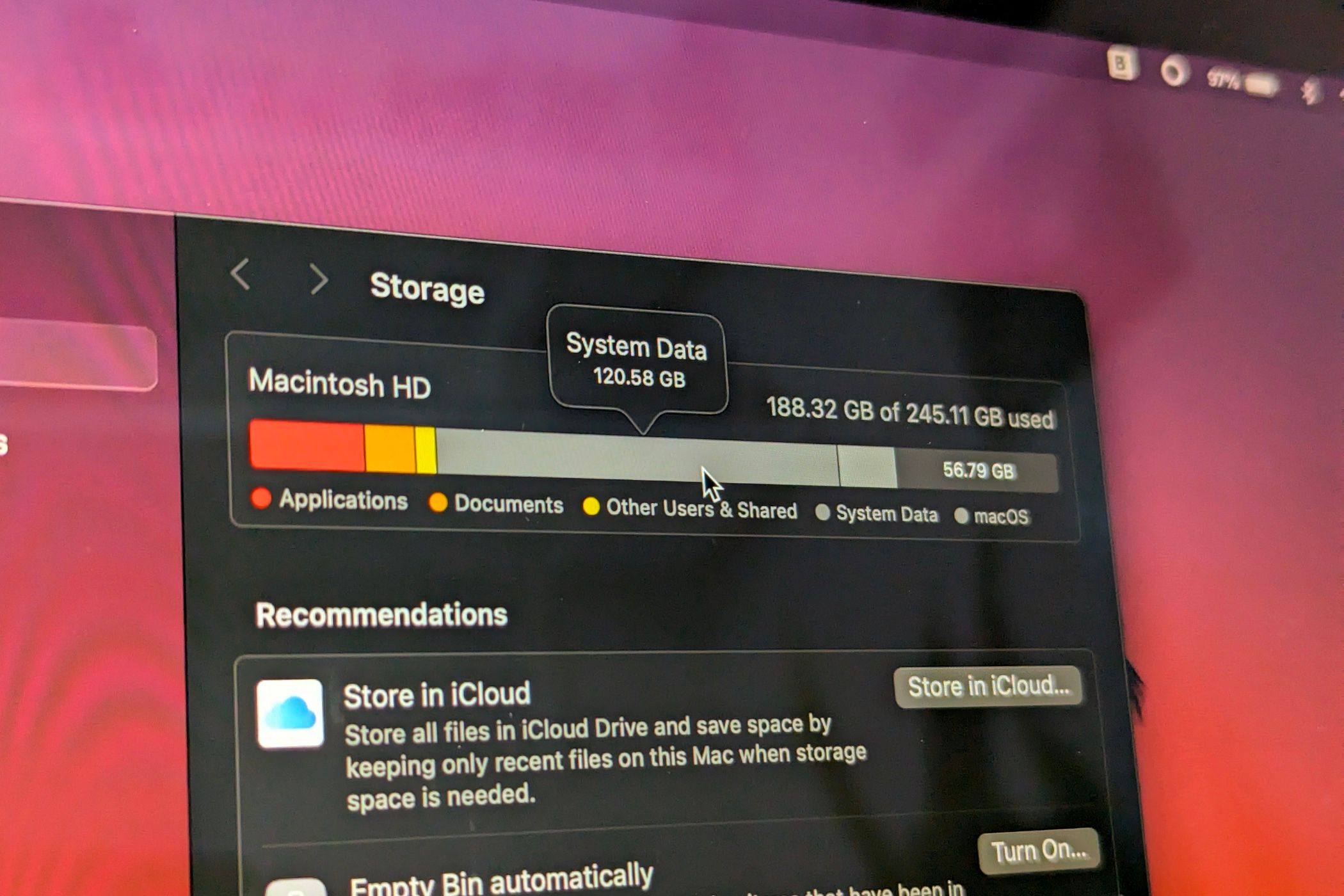
In 2026, a healthy System Data size on modern macOS versions like Tahoe or Sequoia typically sits between roughly 12 and 25 gigabytes. That covers core operating system files plus a normal amount of accumulated caches and logs. If you're seeing 30 gigabytes or more, and especially if you're seeing 50 to 100-plus, something is genuinely worth investigating rather than ignoring.
The New Contributor Older Guides Don't Mention
Here's something worth flagging specifically because it's genuinely new to this category and most older cleanup guides don't account for it at all. Recent coverage has specifically identified AI model files as a contributor that can push System Data past 100 gigabytes, tied directly to Apple Intelligence downloading on-device machine learning models locally to your Mac.
That's a real shift from a few years ago when System Data bloat was almost entirely caches and old backups. If your Mac has been actively using Apple Intelligence features, those on-device models are living somewhere in this category, and they're a genuinely new reason your storage numbers might look different from what an older article prepared you to expect.
This matters most on smaller SSDs specifically. Managing System Data is especially important on smaller 256GB drives, where storage limitations can cause real slowdowns and even prevent macOS updates from installing properly when there isn't enough free space to work with.
Where to Actually Check Your System Data Size
Go to the Apple menu, then System Settings, then General, then Storage. You'll see a color-coded bar showing what's using your disk, and hovering over each segment shows you the exact breakdown, including the System Data portion specifically.
Since System Data doesn't show up as a browsable folder in Finder the way Documents or Applications do, this storage settings view is genuinely the only built-in way to see the size at a glance without digging into Terminal.
Is It Safe to Delete System Data
Yes, but selectively. System Data is managed by macOS, which makes deleting it less straightforward than deleting a folder of downloads. A meaningful portion is genuinely safe to reduce, including user caches, old logs, saved application state, and local Time Machine snapshots, since macOS automatically recreates whatever caches and temporary files it actually needs as you keep using the machine.
What you should avoid touching entirely is anything inside the core System folder, kernel caches, and virtual memory swap files that macOS manages actively and automatically. If you don't recognize what a specific file is or what folder it lives in, that's your signal to leave it alone rather than guess.
What's Safe to Clean vs What to Never Touch
Here's the clearest breakdown I can give you.
Safe to clear: user-level caches stored in your Library/Caches folder, old application logs, saved application state files, and local Time Machine snapshots taking up space temporarily on your drive.
Leave alone: anything inside the System folder itself, kernel caches, active virtual memory swap files, and any file or folder you can't identify with confidence.
Worth reviewing manually: old iPhone or iOS device backups stored through Finder, which can genuinely be several gigabytes each and are easy to forget about once a device has been replaced.
How to Actually Reduce System Data
Start with Apple's own built-in Storage Recommendations. In the same Storage settings screen, scroll to Recommendations and you'll find safe, reversible suggestions like enabling iCloud Drive optimization, automatically emptying Trash after 30 days, and reducing clutter in your Downloads folder.
From there, clearing your user cache folder and removing old Time Machine local snapshots are the two manual steps that tend to free up the most space, sometimes tens of gigabytes depending on how long it's been since your last real cleanup.
For anyone comfortable with Terminal specifically, checking du -sh ~/Library/Caches shows you exactly how large your cache folder actually is before you touch anything, and tmutil listlocalsnapshots / lists every local Time Machine snapshot currently stored on your drive so you know what you're actually clearing before you clear it.
Why System Data Grows Back After You Clean It
Here's something worth setting your expectations around properly. System Data is dynamic by design. macOS will recreate necessary caches and swap files as you continue using your Mac normally, which means a clean-up isn't a permanent fix so much as a periodic maintenance task.
That's not a flaw in whatever method you used to clean it. It's just how the operating system is built to function. Expect to revisit this every few months rather than treating one cleanup session as solving the problem forever.
Should You Use a Third-Party Cleaner Tool
A lot of the coverage on this topic pushes fairly hard toward paid cleanup utilities, and I'd approach that the same way I did when I broke down the best free Mac cleaners properly, start with what Apple already built in before paying for anything. The built-in Storage Recommendations and manual cache clearing cover most people's needs without a subscription.
Where a dedicated tool earns its cost is specifically in identifying orphaned files left behind by apps you've already deleted, since those support files don't always get removed cleanly on their own and can be genuinely tedious to hunt down manually one by one.
Downloads and Browser Activity Add Up Faster Than You'd Think
If you've been downloading a lot of video content recently, whether for editing, archiving, or offline viewing, that activity directly inflates the cache and temporary file portions of System Data through your browser's own download cache and any related app support files. Our guide on YouTube downloader options for iOS covers a different device specifically, but the same underlying storage math applies to any Mac you're using heavily for downloading and managing video files regularly.
Before You Do Any Manual Cleanup
Back up your Mac first, ideally through Time Machine, before manually deleting anything inside System Data. If you accidentally remove something that turns out to matter, having a recent backup means you can restore it rather than risking a corrupted macOS installation that requires a full reinstall to fix.
For Apple's own official guidance on exactly what the Storage Recommendations tool does and how to use it safely, Apple's support documentation on managing Mac storage is the most reliable source to check against, particularly since it stays current as macOS itself changes across versions.
My Honest Take
System Data isn't something to panic about at a normal size, 12 to 25 gigabytes is genuinely fine and expected on current macOS versions. It becomes worth your attention specifically once it climbs past 30 to 50 gigabytes, and especially past 100, where AI model files, forgotten iPhone backups, and years of uncleaned cache folders are the usual culprits.
Start with Apple's built-in Storage Recommendations, clear your cache folder manually if you're comfortable doing so, and remove old device backups you don't actually need anymore. That covers the overwhelming majority of what's realistically reclaimable without ever touching a file you shouldn't.
FAQs
What is System Data on Mac?
A macOS storage category covering caches, logs, temporary files, virtual memory, local Time Machine snapshots, and other files that don't fit into Documents, Apps, or Photos.
Is it safe to delete System Data on Mac?
Yes, selectively. User caches, old logs, and local Time Machine snapshots are generally safe, while anything inside the System folder should be left alone.
Why is my Mac's System Data over 100GB?
Often old iPhone backups, accumulated caches, and on Macs using Apple Intelligence, on-device AI model files can all contribute significantly to that total.
Does clearing System Data permanently fix the problem?
No, macOS recreates necessary caches and temporary files as you continue using your Mac, so periodic cleanup is normal rather than a one-time fix.
What is a normal size for System Data on Mac in 2026?
Roughly 12 to 25 gigabytes on current macOS versions like Tahoe and Sequoia is considered healthy and expected.