

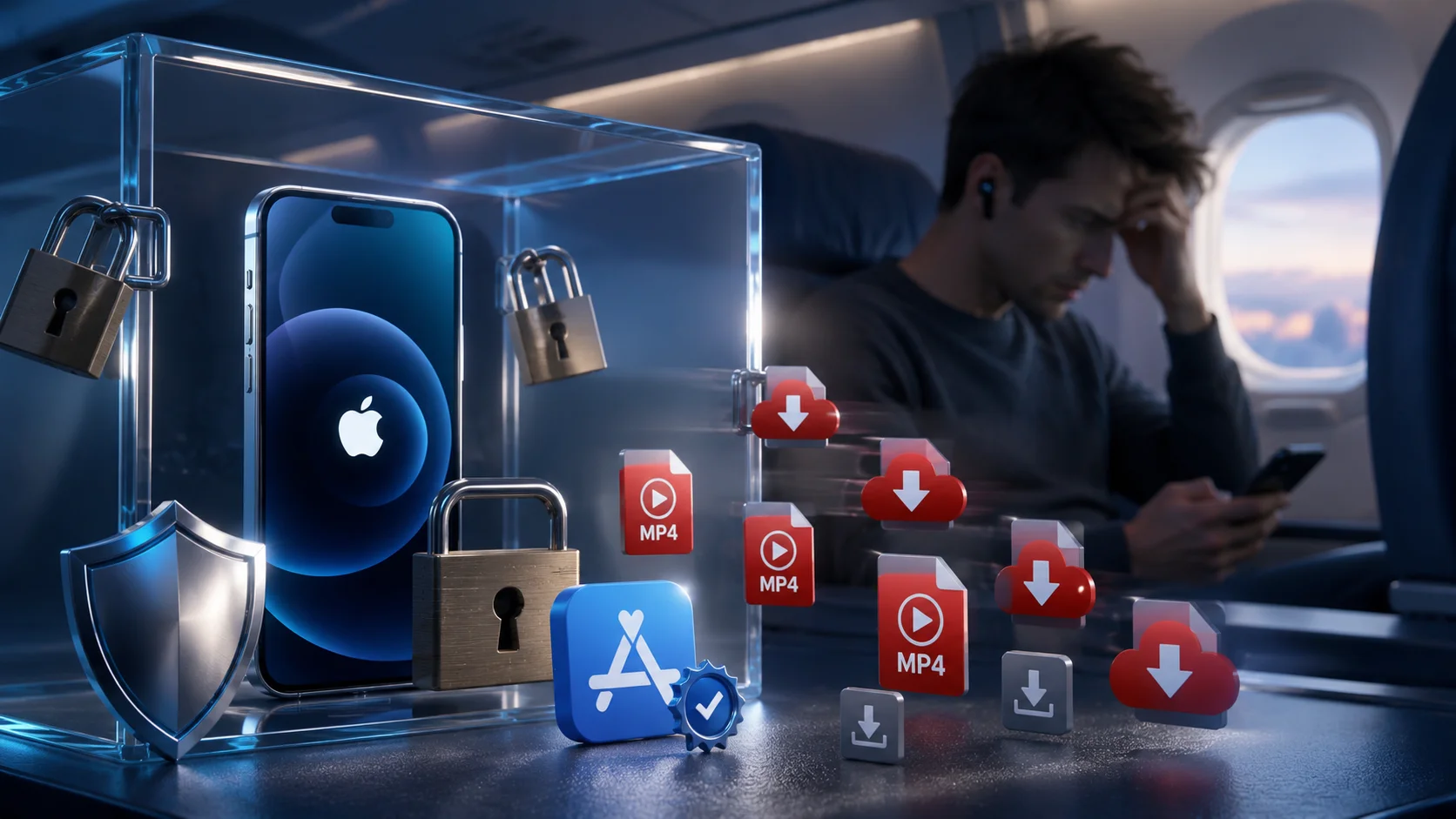
My friend Kevin was on a long flight last month and realized too late that he hadn't saved any of his YouTube videos for offline watching. He had no WiFi, no downloaded content, nothing. Three hours of staring at the ceiling later, he texted me asking what the best YouTube downloader for iPhone was.
I went and looked into it properly. Here's the full honest picture of what works on iOS in 2026, what doesn't, and why downloading YouTube on iPhone is more complicated than on any other device.
Why iPhone Makes This So Hard
Let me be upfront about something before anything else. Downloading YouTube videos on iOS is harder than on Android. Significantly harder.
Unlike Android, Apple's iOS ecosystem has strict policies that limit how apps can download and store videos, especially from platforms like YouTube. Apple's iOS 26 SDK requirements, which took effect in April 2026, require all apps to comply with business model and safety requirements. Apple does not allow apps to download content from sites such as YouTube or Instagram without authorization.
That's the reality. Apple built a walled garden. Every app on the App Store went through review. Any app that directly downloads YouTube videos gets rejected or pulled.
Sandbox restrictions mean Apple apps cannot save or transfer videos to the Photo Library without user intervention
So every method on this list involves some kind of workaround. Some are cleaner than others. I'll tell you exactly which ones are worth your time.
 The Official Option: YouTube Premium
I want to address this first because it's the cleanest answer that most guides skip past too quickly.
YouTube Premium costs $13.99 per month and includes offline downloads natively inside the YouTube app. You tap the download button under any video, choose your quality, and it saves directly for offline viewing inside the app.
No workarounds. No third-party tools. No risk of your method breaking when YouTube updates its backend. It works on iPhone, iPad, Android, and everywhere else.
The catch is it's a subscription. And the downloads only work inside the YouTube app. You can't use the video file in another app or save it to your camera roll.
If you mainly want offline YouTube for commutes and flights, this is genuinely the most reliable path. If you want actual video files saved locally, keep reading.
The iOS Shortcuts Method: Best Free Option Right Now
Here's the method that most iPhone users don't know about and it's actually solid in 2026.
iOS Shortcuts is a built-in Apple app that lets you run automated workflows triggered by sharing a link. There are community-built shortcuts specifically designed for downloading video from YouTube and other platforms.
You add a media-centric shortcut like All Media Downloader or R⤓Download. Navigate to the video you want in any app like YouTube. Tap the share button and scroll down to select the shortcut. You will then be prompted to give the shortcut the necessary permissions and it will automatically fetch the video and save it to your Photos app.
The process is a bit clunky the first time you set it up. But once it's configured, it's fast. You hit share, tap the shortcut, and the video saves.
The quality ceiling depends on the shortcut you're using and what the source video offers. Most work up to 1080p. Some handle 4K.
Documents by Readdle: The Classic Workaround
Documents by Readdle is a file manager app that's been on the App Store for years. It has a built-in browser that lets you navigate to web-based downloaders and save the resulting video file directly to the app's internal storage.
Documents by Readdle is an all-in-one file manager and video downloader for iOS that allows you to access, view, organize, and share audio, images, and video files on your iPhone. It supports multiple file formats including MP4, MOV, and ISO.
The workflow is: open Documents, use the built-in browser, go to a web-based downloader like SaveFrom.net, paste your YouTube URL, download the video, and then export it to your camera roll from inside Documents.
It's multiple steps and not as clean as a dedicated app. But it works consistently and it's free. From what I saw, this is the method most experienced iOS users fall back on when they need something reliable.
Web-Based Downloaders: Quickest for One-Off Downloads
If you need to download a single video quickly without installing anything, web-based tools are the fastest path on iPhone.
Open YouTube on your iPhone browser or app, find the video, tap Share, then Copy Link. Navigate to a web downloader in Safari, paste the link, select your preferred quality including 360p, 720p, 1080p, or 4K, and tap Download. When the file opens, tap the Share icon in Safari and select Save to Files or Save Video to store it in your Camera Roll or iCloud.
Popular options include Cobalt, VidVault, and Y2Mate. Cobalt specifically gets consistent praise in 2026 for being clean and ad-light.
The honest limitation here is reliability. Many popular tools stopped working after YouTube's recent backend changes. We tested 15 YouTube downloaders between January and March 2026 and found only 6 that still function reliably.
Web-based tools break more often than desktop or shortcut-based methods. The one that works today might not work next month. Keep two or three bookmarked so you have a backup.
Total Files App: Best Dedicated iOS App
Total Files is one of the most consistently recommended dedicated download apps available on the App Store in 2026.
Total Files is one of the best video downloaders for iPhone to download video, audio, and other media types quickly and easily. You can effortlessly download videos from the web directly to your iPhone without having to convert the file into another format or use extra software. Total Files can download YouTube movies and pull content from popular websites such as Facebook and Vimeo.
The app has a built-in browser you use to navigate to YouTube, and a built-in downloader that detects the video and offers you a save option. The UI is cleaner than Documents by Readdle for people who specifically want a video downloading experience rather than a general file manager.
Some features require a paid upgrade. The free version covers basic downloads well enough to evaluate before spending anything.
SYC PRO: Best Desktop-to-iPhone Transfer Option
Here's a different approach that works particularly well if you also use a Mac.
SYC PRO is a YouTube downloader app for Mac and Windows. It saves YouTube videos as MP4, converts video to MP3 or AAC, supports playlists, subtitles, Shorts, and 4K when the source provides it, and can send downloads straight to iPhone, iPad, Apple Music, Mac, or Windows.
The workflow is: download the video on your Mac using SYC PRO, then it transfers directly to your iPhone over cable or Wi-Fi. No iTunes. No Finder gymnastics.
Most downloaders treat iPhone transfer as your problem. They create a file and walk away. SYC PRO handles the YouTube side and the Apple-device side.
If you do a lot of downloading and you're in the Apple ecosystem, this is the most complete solution. The desktop does the heavy lifting and the iPhone just receives the finished file.
The iOS Screen Recorder Fallback
Here's the option nobody wants to use but everyone should know about.
If a video is protected by heavy encryption or is on a private account where downloaders fail, the built-in iOS Screen Recorder is your failsafe backup. Swipe down to open Control Center, tap the Record icon, play your video in full-screen mode. Once done recording, tap the red status bar to stop. Go to your Photos app to trim the beginning and end.
This records exactly what's on your screen at whatever quality your display outputs. No quality selection, no format options. Just a screen recording.
It works when everything else fails. The output quality is limited by your screen resolution rather than the source video quality. For a quick capture of something you need and can't get any other way, it does the job.
The Legal Side You Need to Know
I want to be real with you here because this matters.
YouTube's Terms of Service technically prohibit downloading content without permission. That's just the truth and it's worth knowing before you use any of these methods.
There are legitimate use cases where downloading is fine. Your own uploaded content. Content you've been explicitly given permission to download. Public domain material. Creative Commons licensed videos.
For the safest mobile experience, use official offline downloads when available and avoid apps that ask for unrelated access to contacts, SMS, or device storage beyond what is needed.
The practical reality is that millions of people download YouTube videos for personal offline use every day. The risk exposure for personal, non-commercial use is low. But reproducing content commercially, distributing downloads, or stripping copyrighted music is a different matter entirely.
Use these tools responsibly and for content you have a legitimate reason to save.
Which Method Should You Actually Use
Here's my honest recommendation based on different situations.
You want the simplest solution and don't mind paying: YouTube Premium. It's the most reliable offline method with no workarounds.
You want free and don't mind a small setup: iOS Shortcuts with All Media Downloader. Setup takes ten minutes and then it's quick every time.
You need a one-off download right now: web-based tool in Safari. Cobalt or VidVault, paste the link, save the file.
You download regularly and have a Mac: SYC PRO handles the whole workflow including the transfer to your iPhone.
You want a dedicated app: Total Files is the cleanest App Store option in 2026.
A Note About Offline Content in General
Here's something adjacent worth knowing. If you're looking at offline video options more broadly beyond just YouTube, the whole landscape of devices that handle offline content has gotten interesting.
For people who want to record and save live TV offline, I recently reviewed the Tablo TV DVR for gadgetsbin which is a completely different category but solves the same underlying problem. You want your content available when you're not connected. Whether that's YouTube downloads on your iPhone or recorded local channels on your TV, the solution is always about getting the content into local storage before you need it.
FAQs
Can you download YouTube videos on iPhone for free?
Yes. iOS Shortcuts with a community shortcut, web-based tools like Cobalt or VidVault in Safari, and apps like Total Files or Documents by Readdle all work without paying anything.
What is the best YouTube downloader for iPhone in 2026?
For free use, iOS Shortcuts is the most reliable method. For a paid all-in-one solution that transfers to iPhone directly, SYC PRO on Mac is the cleanest option.
Is it legal to download YouTube videos on iPhone?
YouTube's Terms of Service technically prohibit downloading without permission. Personal offline use of content you own or have permission to save carries low risk. Commercial use or redistribution is a different matter.
Why is downloading YouTube on iPhone harder than Android?
Apple's App Store policies prohibit apps that download content from YouTube without authorization. Android allows more flexibility including sideloading apps outside the Play Store.
Does YouTube Premium allow downloading on iPhone?
Yes. YouTube Premium includes native offline downloads inside the YouTube app on iPhone. Downloads are accessible only within the YouTube app and cannot be exported as video files.