

If you've ever scrambled behind the couch cushions looking for your remote five minutes before a movie starts, you know the specific frustration of the Roku remote situation. It's small, it's easy to lose, and when something goes wrong with it, streaming comes to a grinding halt.
But there's a lot more to Roku's remotes than most people realize including some features that make them genuinely impressive once you know what you're working with. This guide covers everything from the basics to the less obvious tricks, written for real users rather than product spec sheets.
Two Types, Very Different Experiences
Roku devices ship with one of two remote types, and the difference matters more than most people think before they buy.
The IR (infrared) remote is the simpler version. It requires direct line-of-sight to work just like your old TV remote. Point it at the device, press a button, done. The problem is that if something blocks the path, nothing happens. IR remotes also can't "find" their device; they just broadcast a signal and hope something picks it up.
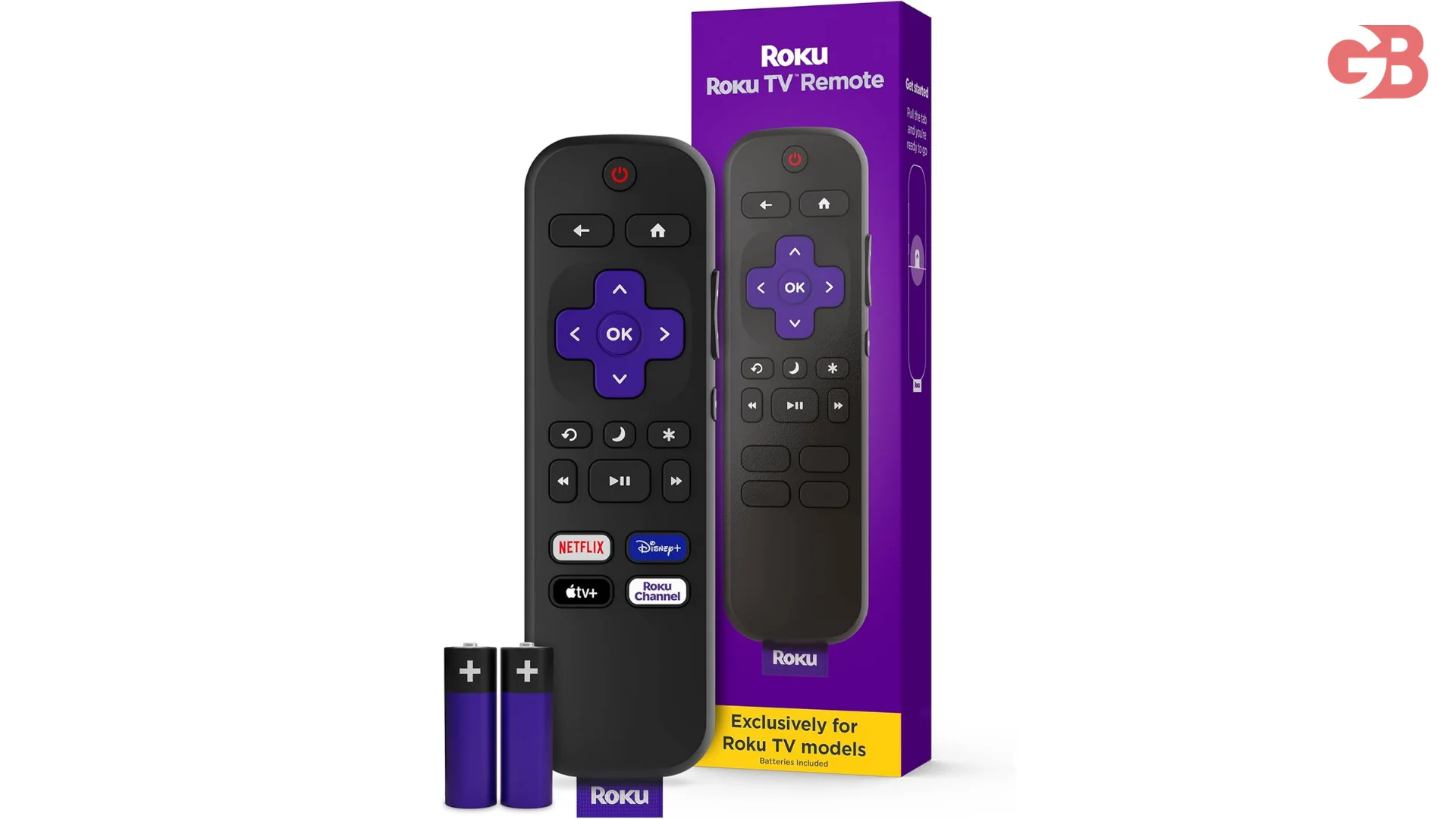
The Enhanced Voice Remote (sometimes called the "point-anywhere" remote) uses a wireless radio frequency connection instead of IR. You can use it from another room, point it in any direction, and even speak into a built-in microphone to search for shows. This type also enables features like private listening through the headphone jack on the remote itself useful when others are asleep and you want to finish an episode.
Quick check: If your Roku remote has a microphone button (looks like a small circle with a line), it's the enhanced wireless type. No mic button = IR remote. This matters when troubleshooting connection issues.
 Pairing Remote
IR remotes require no pairing they just work once you have batteries in. Enhanced remotes, however, need to be paired to your specific Roku device, and this is where many people run into trouble.
Standard pairing steps
Make sure your Roku device is powered on and fully loaded (home screen visible).
Insert fresh batteries into the remote old batteries are the number one cause of failed pairing.
Press and hold the pairing button, usually located in the battery compartment, for about 3 seconds.
A light on the remote will flash, and a pairing dialog should appear on your TV.
If the pairing fails repeatedly, the most common culprits are: drained batteries, the Roku still booting up when you started the process, or being too far from the device (stay within 10 feet during pairing, even though the remote works from much further once connected).
When your remote just stops responding
Before assuming the remote is broken, try a full power cycle: unplug the Roku device from its power source, remove the batteries from the remote, wait 30 seconds, then plug everything back in and reinsert the batteries once the home screen appears. This clears stuck connection states that can build up over time it works more often than it should.
Phone as a Replacement Remote
This is one of Roku's more underrated features. The official Roku mobile app for iOS and Android includes a full remote replacement and in some ways, it's better than the physical version.
The app remote can use your phone's keyboard for text input, which is dramatically faster than hunting through Roku's on-screen keyboard one letter at a time. If you've ever tried to type a long Wi-Fi password or search term using the physical remote, you understand why this matters immediately.
The phone remote connects over your local Wi-Fi network, so it works from anywhere in your home without line-of-sight requirements. One catch: both your phone and the Roku device need to be on the same Wi-Fi network. If you've recently changed your router or password, that's the first thing to check if the app remote stops working.
No app needed for basic control: Many smart TVs with Roku built in can also be controlled through the TV's own buttons as a fallback. And if your TV supports HDMI-CEC (sometimes branded as Anynet+, Bravia Sync, or Simplink), your regular TV remote may already control basic Roku navigation.
Voice Features
Enhanced Roku remotes have had voice search for years, but plenty of users never press the microphone button. It's worth trying saying "search for crime documentaries" or "play Ozark on Netflix" is significantly faster than navigating manually, especially when you're not sure which app has what you're looking for.
The voice search is cross-platform, meaning Roku searches across all your installed streaming services simultaneously and shows you where a title is available (and which options are free versus paid). This is actually one of Roku's strongest competitive features it avoids the frustrating experience of opening Netflix, not finding something, then checking Hulu, then Prime.
Some newer Roku remotes also include dedicated shortcut buttons for services like Netflix, Disney+, or Hulu. These are set by the manufacturer and can't be remapped, which is a legitimate frustration if you don't use those particular services. Roku has faced some criticism for these arrangements since they're partly driven by paid deals with streaming companies worth knowing before you assume the button layout is purely for your convenience.
Also Read: How Many Inches Is a Roku Remote?
Replacing a Lost or Broken Remote
Official Roku replacement remotes are available directly from Roku's website and major retailers, typically ranging from $15–$30 depending on the model. The important thing is matching the remote to your device not all Roku remotes work with all Roku products.
Third-party universal remotes can work with Roku devices too, but they generally only support IR-based control. That means no voice search, no private listening, and no wireless connectivity. For most basic navigation, that's fine. For the full feature set, stick with an official remote.
If you're on a budget, the Roku mobile app as a permanent remote replacement is a completely viable option. Some households run this way intentionally the phone keyboard alone makes it preferable for anyone who does a lot of searching or text entry.
Private Listening
Certain Roku remotes include a 3.5mm headphone jack on the remote itself. Plug in any standard earphones, and the audio routes directly to your headphones not the TV speakers. This works wirelessly because the remote itself processes the audio signal.
If your physical remote doesn't have a headphone jack, the Roku mobile app offers the same private listening feature through your phone's headphone output (or Bluetooth headphones connected to your phone). It introduces a small audio delay compared to direct TV audio, which can feel slightly off for action-heavy content, but it's barely noticeable for dialogue-heavy shows and films.
Common Misconceptions
All Roku remotes are interchangeable. Not quite. While many are compatible across multiple device generations, enhanced remotes and IR remotes aren't interchangeable in terms of features, and some older Roku devices won't pair with newer enhanced remotes.
The remote needs batteries quickly. Roku enhanced remotes are actually quite battery-efficient most users get many months from a single pair of AA batteries under normal use. Rapid battery drain usually signals a defective remote or a pairing loop issue where the remote is constantly trying to reconnect.
You must use the Roku remote to control Roku. Not true. HDMI-CEC, the mobile app, voice assistants like Alexa or Google Home (if set up), and even some smart home platforms can control Roku without any physical remote at all.
Frequently Asked Questions
Can I use a Roku remote with a non-Roku TV?
If the Roku device (stick or box) is plugged into a non-Roku TV, the remote controls the Roku device, not the TV itself except for volume and power buttons on enhanced remotes, which typically use IR to control the TV's basic functions regardless of brand.
Why does my Roku remote work intermittently?
Intermittent response on an enhanced remote usually points to a weak battery or interference from other 2.4GHz devices like Wi-Fi routers or baby monitors. Try replacing batteries first. If IR remote, check that nothing is blocking the sensor on the front of the Roku device.
Is there a way to program the Roku remote to control my TV's input?
Some enhanced Roku remotes support programming to control TV inputs. Go to Settings > Remotes & Devices > Set up remote for TV control in your Roku menu. Not all remotes support this, and success varies by TV brand.
Does Roku offer a rechargeable remote option?
As of recent Roku lineups, most remotes still use standard AA batteries. Some third-party rechargeable battery solutions work fine in Roku remotes. Roku has not released an officially rechargeable remote as a standard product, though this may change with future models.
Will a Roku remote from an older model work with a newer Roku device?
Often yes for basic navigation, but you may lose features specific to newer remotes. Roku maintains reasonably good backward compatibility. Check Roku's official compatibility page if you're unsure about a specific combination.
The Bottom Line
The Roku remote is more capable than it looks and more replaceable than most people realize. Whether you're troubleshooting a connection problem, looking at voice features for the first time, or figuring out what to do without a physical remote at all, there's usually a practical solution that doesn't require buying anything new. Understanding which remote type you have is the first step to solving most issues quickly.