

My cousin Jake was over last weekend and he had his Switch out, playing handheld on the couch.
He looked at his AirPods, looked at the Switch, and asked me, "bro can I just connect these or what?"
I told him yes, actually you can. And then I walked him through the whole thing.
So I figured I would write it all out properly because a lot of people have the same question and the answer is not just yes or no. There are some things we need to know going in.
The Short Answer
Yes, we can connect AirPods to a Nintendo Switch.
Nintendo added native Bluetooth audio support back in a system update, and it works across all Switch models. The original Switch, the Switch Lite, and the OLED model all support it.
Before that update, people had to use a separate Bluetooth adapter dongle just to get wireless audio. Now we do not need any of that. We just pair directly.
But there are some real limitations we need to talk about. I will get to those in a minute.
What You Need Before You Start
Two things and that is it.
First, make sure the Switch is updated to at least system version 13.0.0 or higher. That is the update that brought Bluetooth audio in. If we are below that version, the Bluetooth Audio option will not even show up in settings.
To check, go to System Settings, scroll down to System, and tap System Update.
Second, make sure the AirPods are charged and within range. Pretty obvious but worth saying.
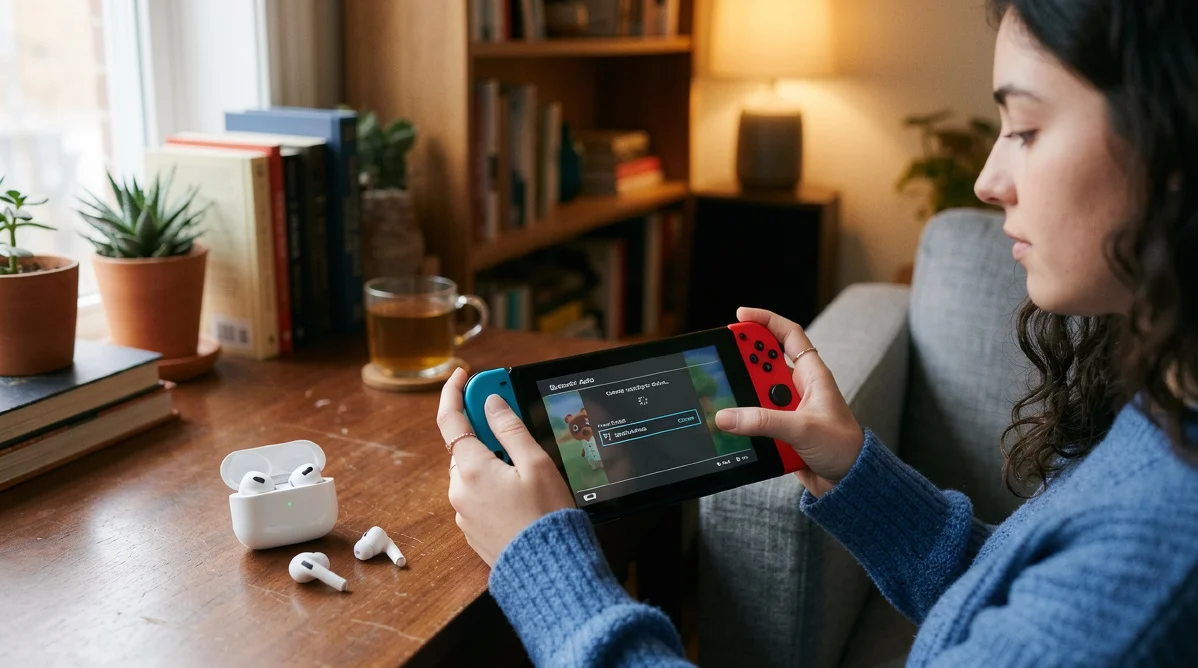 How to Connect AirPods to Nintendo Switch
This takes about two minutes once we know the steps.
Step 1: On the Switch home screen, tap the gear icon in the bottom right to open System Settings.
Step 2: Scroll all the way down on the left sidebar until we see Bluetooth Audio. Tap it.
Step 3: Select Pair Device.
Step 4: Now grab the AirPods case. Open the lid. Press and hold the small button on the back of the case until the LED light starts flashing white. That means they are in pairing mode.
For AirPods 4 specifically, we need to double tap the front of the case instead of holding the button on the back.
Step 5: The Switch will scan and find the AirPods. When they appear in the list, select them.
That is it. They will connect and audio will come through the AirPods immediately.
How to Reconnect AirPods Next Time
The good news is we do not have to go through the full pairing process every time.
Once we pair them once, the Switch remembers them.
Next time we just go to System Settings, then Bluetooth Audio, and we will see our AirPods listed there. Select them, hit Connect Device, and we are good to go.
Takes maybe ten seconds.
The Limitations We Need to Know About
Okay so here is the part I always tell people before they get too excited.
The Switch's Bluetooth audio setup works but it has some real quirks. These are not deal breakers for most people but we should know about them going in.
The microphone does not work.
This is the big one. Nintendo does not support Bluetooth microphones on the Switch at all. So we cannot use the AirPods mic for voice chat in any game.
If we want voice chat, we need to use the Nintendo Switch Online app on our phone or plug in a wired headset.
There is a controller limit.
When Bluetooth audio is active, we can only connect up to two wireless controllers at the same time. If we are playing local multiplayer with a bunch of Joy-Cons, Bluetooth audio gets bumped.
There can be audio lag.
The Switch uses Bluetooth 4.1 which is older tech. AirPods are designed to work best with Apple's own devices using Apple's own audio processing. When they connect to the Switch, they fall back to a more basic codec.
The result is that we might notice a slight delay between what happens on screen and what we hear. It is usually around 200 to 300 milliseconds.
For most games this is barely noticeable. For rhythm games or anything where audio timing matters, it can be pretty annoying.
Volume might feel lower than expected.
A few people notice the max volume through AirPods on Switch is quieter than what they get with wired headphones or when using AirPods with an iPhone. It is just a known thing with how the Switch handles Bluetooth audio output.
Does It Work in Docked Mode Too
This one I had to look into because people ask it a lot.
Yes, it works in docked mode as well. We can connect AirPods whether we are playing handheld, tabletop, or docked on the TV.
One thing to know is that in docked mode, Bluetooth bandwidth gets a bit more strained because the Switch is also communicating with wireless controllers at the same time. Some people notice slightly more audio issues in docked mode versus handheld.
Handheld is where the experience tends to be the smoothest.
Also Read: How to Win Back Customers With Abandoned Cart Campaigns
What If We Want Zero Lag
If the audio delay is driving us crazy, there is a fix.
A Bluetooth adapter that uses aptX Low Latency codec will give us noticeably better audio sync than the Switch's built in Bluetooth. These little adapters plug into the USB-C port or the headphone jack and handle the Bluetooth connection themselves.
The Switch 2 actually improved on this significantly with Bluetooth 5.2 support, so if we are on the newer console the native experience is better already.
But for original Switch, Lite, or OLED, a dedicated adapter is the move if lag is bothering us.
Works With All AirPods Models
I want to confirm this because people always ask about specific models.
All of these work with the Switch:
AirPods 2nd gen, AirPods 3rd gen, AirPods 4, AirPods 4 with ANC, AirPods Pro 1st gen, AirPods Pro 2nd gen, and AirPods Max.
The pairing process is the same for all of them. The only small difference is that AirPods 4 uses a double tap on the front of the case to enter pairing mode instead of holding the back button.
Quick Troubleshooting
If the AirPods are not showing up during pairing, here are the things I check first.
Make sure the AirPods are actually in pairing mode. The LED should be flashing white, not solid white or amber. Flashing white means they are ready to pair.
If they already have a connection saved to another device like an iPhone, that can sometimes interfere. Try resetting the AirPods by holding the back button until the light flashes amber, then white. That clears their saved connections.
Also make sure we are not trying to pair from too far away. Keep the AirPods case within a couple feet of the Switch during pairing.
FAQs
Can you connect AirPods to Nintendo Switch without an adapter?
Yes. Since the system update that added native Bluetooth audio support, we can pair AirPods directly through System Settings without any extra hardware.
Do AirPods work with Nintendo Switch Lite?
Yes, the Switch Lite supports Bluetooth audio the same way the standard Switch and OLED model do.
Can I use AirPods for voice chat on Switch?
No. The Switch does not support Bluetooth microphones, so the AirPods mic will not work for in-game voice chat.
Why is there a delay with AirPods on Switch?
The Switch uses older Bluetooth 4.1 technology and does not support the low latency codecs that AirPods use with Apple devices. This causes a slight audio lag that can be 200 to 300 milliseconds.